Slurm Cluster Scheduler
This section contains information on general slurm use. If this is your first time running slurm, it is recommended that you read over some of the basics on the official Slurm Website and watch this introductory video: Introduction to slurm tools video

Example Job Submission
To submit a job to the scheduler, first figure out what kind of resource allocation you need. Once you have that set up a launching script similar to the following:
#!/bin/sh

## Run this file with the command line "sbatch example.sh" for a working demo.

## See http://slurm.schedmd.com/sbatch.html for all options
## The SBATCH lines are commented out but are still read by the Slurm scheduler
## ***Leave them commented out with a single hash mark!***

## To disable SBATCH commands, start the line with anything other than "#SBATCH"
##SBATCH       # this is disabled
####SBATCH     # so is this
# SBATCH       # disabled
 #SBATCH       # disabled

##
## Slurm SBATCH configuration options
##

## The name of the job that will appear in the output of squeue, qstat, etc.
#
#SBATCH --job-name=this-is-the-job-name


## max run time HH:MM:SS
#
#SBATCH --time=10:00:00


## -N, --nodes=<minnodes[-maxnodes]>
## Request that a minimum of minnodes nodes (servers) be allocated to this job.
## A maximum node count may also be specified with maxnodes.
#
#SBATCH --nodes 1-3


## -n, --ntasks=<number>
## The ntasks option is used to allocate resources for parallel jobs (OpenMPI, FreeMPI, etc.).
## Regular shell commands can also be run in parrallel by toggling the ntasks option and prefixing the command with 'srun'
## ntasks default value is 1
## THIS OPTION IS NOT USED TO RESERVE CPUS FOR MULTITHREADED JOBS; See --cpus-per-task
## Mulithreaded jobs only use one task. Asking for more tasks will make it harder for your job to schedule and run.
#
#SBATCH -n 1

## --cpus-per-task=<number>
## The cpus-per-task option reserves a set number of CPUs (cores) for each task you request.
## The cpus-per-task option can be used to reserve CPUs for a multithreaded job
## The default value is 1
#
#SBATCH --cpus-per-task=1

## For hydra, main and main2 are the available partitions.  This line is safe to omit
## on gravel as CLUSTER is the only partition.  Check /etc/partitions.conf for currently
## defined partitions.
#
#SBATCH --partition main2,main


## Command(s) to run.
## You specify what commands to run in your batch below.
## All commands will be run sequentially unless prefixed with the 'srun' command
## To run this example in sbatch enter the command: 'sbatch ./example.sh'
## The output from this example would be written to a file called slurm-XXX.out where XXX is the jobid
## The slurm out file will be located in the directory where sbatch was executed.

MESSAGE='Hello, world!'
echo ${MESSAGE}

## Another example command
# my_computation_worker /home/user/computation_worker.conf
Once you write a launcher script with the correct resource allocations, you can launch your script using the following command:
> sbatch ./example.sh
Submitted batch job 440
This submits your job to the scheduler. You can check the status of the job queue by running:
> squeue
  JOBID PARTITION     NAME     USER ST       TIME  NODES NODELIST(REASON)
  433     main2 trinity-    arom2  R 3-00:47:07      1 compute-1-9
  439     main2 tip_plan   jblac2  R    2:24:55      8 compute-1-[7-8,10,12-16]
  438     main2 fdtd_job   jblac2  R    2:37:18      8 compute-1-[0-6,11]
Useful Slurm Commands
Here are a list of useful slurm commands.
scancel is the tool for canceling your jobs:
> scancel [jobid]
scontrol shows information about running jobs:
> scontrol show job [jobid]
  UserId=jblac2(169223) GroupId=jblac2(54419)
  Priority=10220 Nice=0 Account=jblac2 QOS=normal WCKey=*default
  JobState=RUNNING Reason=None Dependency=(null)
  Requeue=1 Restarts=0 BatchFlag=1 ExitCode=0:0
  RunTime=02:40:04 TimeLimit=4-04:00:00 TimeMin=N/A
  SubmitTime=2014-08-25T13:46:37 EligibleTime=2014-08-25T13:46:37
  StartTime=2014-08-25T13:46:37 EndTime=2014-08-29T17:46:37
  PreemptTime=None SuspendTime=None SecsPreSuspend=0
  Partition=main2 AllocNode:Sid=hydra:1704
  ReqNodeList=(null) ExcNodeList=(null)
  NodeList=compute-1-[0-6,11]
  BatchHost=compute-1-0
  NumNodes=8 NumCPUs=128 CPUs/Task=1 ReqB:S:C:T=0:0:*:*
  Socks/Node=* NtasksPerN:B:S:C=16:0:*:* CoreSpec=0
  MinCPUsNode=16 MinMemoryNode=0 MinTmpDiskNode=0
  Features=(null) Gres=(null) Reservation=(null)
  Shared=OK Contiguous=0 Licenses=(null) Network=(null)
  Command=/home/jblac2/job.sh tip_3d_trial_2/geometry.fsp
  WorkDir=/home/jblac2
  StdErr=/home/jblac2/slurm-438.out
  StdIn=/dev/null
  StdOut=/home/jblac2/slurm-438.out
sinfo show information about the state of the cluster:
> sinfo
PARTITION AVAIL  TIMELIMIT  NODES  STATE NODELIST
DEBUG        up   infinite      0    n/a
main         up   infinite     14   idle compute-0-[0-13]
main2*       up   infinite     17  alloc compgute-1-[0-16]
main2*       up   infinite      1   idle compute-1-17
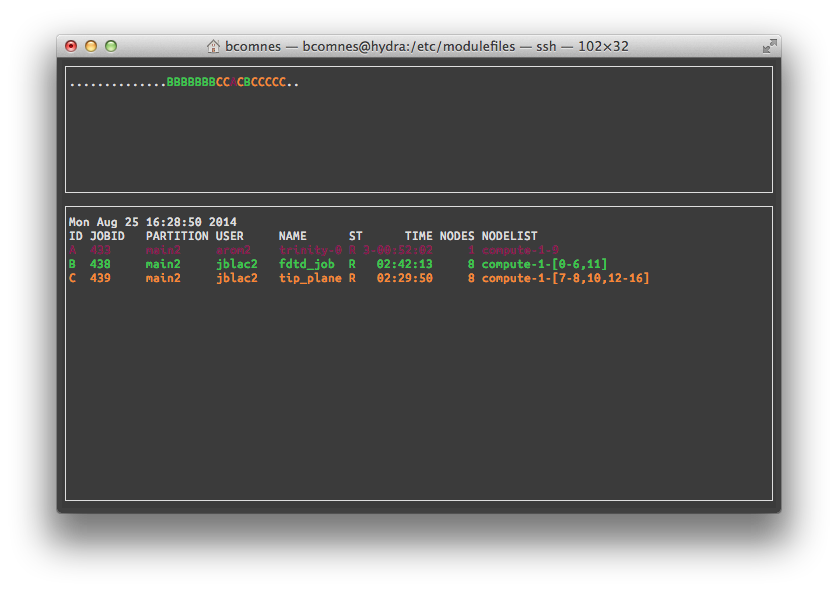
smap shows a visual representation of the cluster: